
What is a Saved Filter?
A Saved Filter is a custom search or segment you create inside your CRM (like Follow Up Boss) that automatically groups leads based on shared traits — such as their Lead Score, Persona, or Lead Type.
Saved Filters make it easy to organize, tag, and target your database strategically without needing to manually sort through your contacts every time.
Why Saved Filters Matter
Saved Filters allow you to:
- Group and tag leads automatically based on important data points (Lead Score, Persona, Lead Type).
- Identify priority segments for campaigns or daily outreach.
- Build Smart Lists or automations that update in real time as lead data changes.
This ensures your team always knows who to focus on and how to reach them - improving both efficiency and personalization.
Examples of Saved Filters in Action
Here are a few common examples of how teams use Saved Filters to work smarter:
| Filter | Criteria | Purpose |
|---|---|---|
| High-Intent Leads (Score 90+) | Lead Intelligence Score ≥ 90 | Identify your most ready-to-act leads for immediate 1:1 outreach. |
| Move-Up Buyers – High Intent | Lead Type = Move-Up Buyer + Score ≥ 85 | Target homeowners ready to sell and upgrade their property. |
| First-Time Buyers – Awareness Stage | Lead Type = First-Time Home Buyer + Score ≤ 59 | Send educational nurture campaigns to new buyers early in their journey. |
| Investor Leads – Mid-Funnel | Lead Type = Investor + Score 60–89 | Provide market updates and ROI-driven property opportunities. |
| Persona-Based Campaigns | Persona = “Relaxed Retiree Rhonda” | Personalize outreach for your most common personas with tailored campaigns. |
How to Create a Saved Filter
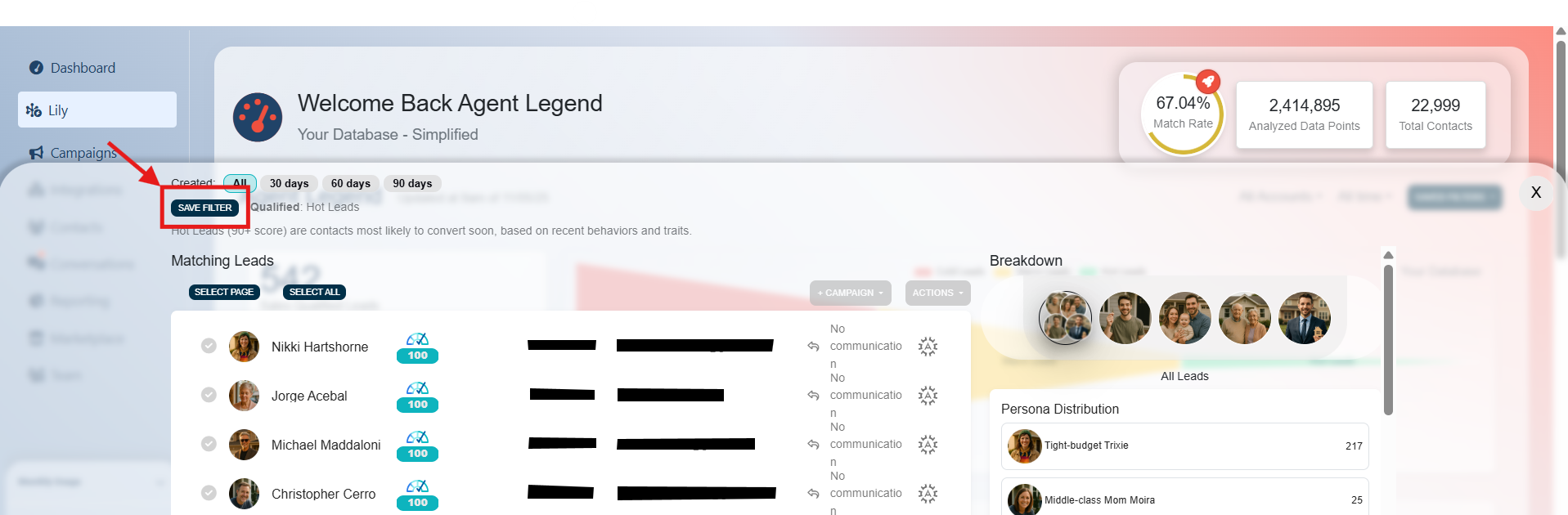
- Go to your Lily Dashboard inside Agent Legend.
- Select your filter criteria by clicking on the modules.
- You can further narrow your selection by using the filters on the right-hand side of the list.
-
Click the “Save Filter” button in the top-left corner.
- Name your Saved Filter.
- Give it a clear, descriptive name that identifies its purpose - for example:
- “High Score Downsizers”
- “Investors – Mid Funnel”
- Clear names make it easy to reference filters in future automations or Smart Lists.
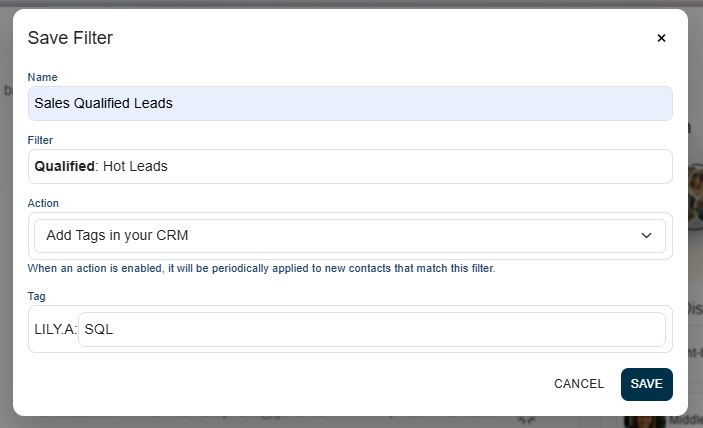
- From the Action dropdown, select “Add Tags in your CRM.”
- Automated tags created from Lily will begin with the prefix
Lily.A: - You can enter a custom suffix that best fits your segment (e.g.,
Lily.A:HotLeads). - As new leads meet the criteria for your filter, they will be automatically tagged in your CRM.
- Automated tags created from Lily will begin with the prefix
- Use your Saved Filter as a campaign list.
- Connect it to your Agent Legend campaign integration, or
- Update/create your Follow Up Boss Smart Lists using the new tag.
Note: New tags created using Lily's Saved Filters will fully sync with your CRM in ~2 hours.
Best Practices
- Keep filter names simple and descriptive (e.g., Score 90+, Downsizers).
- Use Saved Filters to power automated campaigns or daily Smart Lists.
- Review your filters periodically to ensure they reflect your current priorities.
- Combine filters with Personas and Lead Intelligence Scores for targeting precision.
A Saved Filter gives you instant visibility into key lead segments and helps to ensure your CRM stays organized, intelligent, and action-ready.