
How Do I Setup Campaigns for RealScout?
Agent Legend's RealScout campaigns are pre-built, ready-to-go follow-up sequences that trigger automatically based on what your contacts do inside your home search portal. When RealScout detects activity — like a buyer saving a property or a homeowner checking their home value — it applies a tag in Follow Up Boss. That tag starts the right Agent Legend campaign for that contact automatically.
This article walks you through the three steps to get everything connected and running.
> Before you start: You'll need an active RealScout account, a Follow Up Boss account connected to Agent Legend, and access to the RealScout campaigns inside your Agent Legend account. If you don't see the campaigns yet, reach out to our team and we'll get them added for you.
Step 1: Get a copy of the campaigns in your account
Your Agent Legend rep will send you a link to access a pre-built copy of the RealScout campaign suite. Click the link and follow the prompts to add the campaigns to your account. They'll appear in your Campaigns library ready to use. You don't need to build or configure the sequences themselves. The copy, timing, and touchpoints are already set up for you.
Step 2: Make sure your Follow Up Boss account is connected
RealScout applies tags to your contacts inside Follow Up Boss. Agent Legend reads those tags to know when to trigger a campaign. For this to work, your Follow Up Boss account needs to be connected to Agent Legend.
To check or set up your Follow Up Boss integration:
- Go to the Follow Up Boss Integration Settings
- Make sure your FUB API Key is connected.
-
Turn ON the first setting for "Import New Contacts".
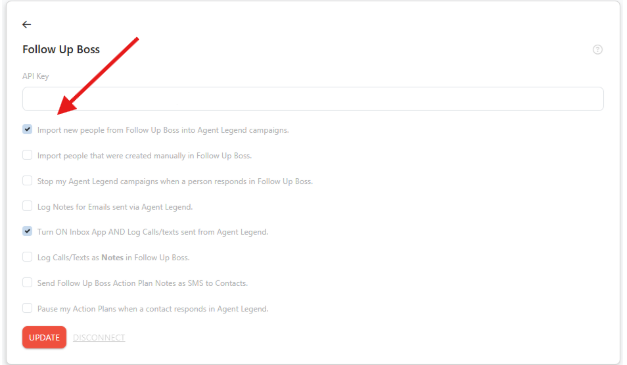
If you run into any issues connecting your Follow Up Boss account, please reach out.
Step 3: Create an integration to monitor for RealScout tags and trigger the campaign
Once your campaigns are in your account and Follow Up Boss is connected, the final step is telling Agent Legend which tag should trigger which campaign.
-
Go to Integrations in the left-hand sidebar and click New Integration.
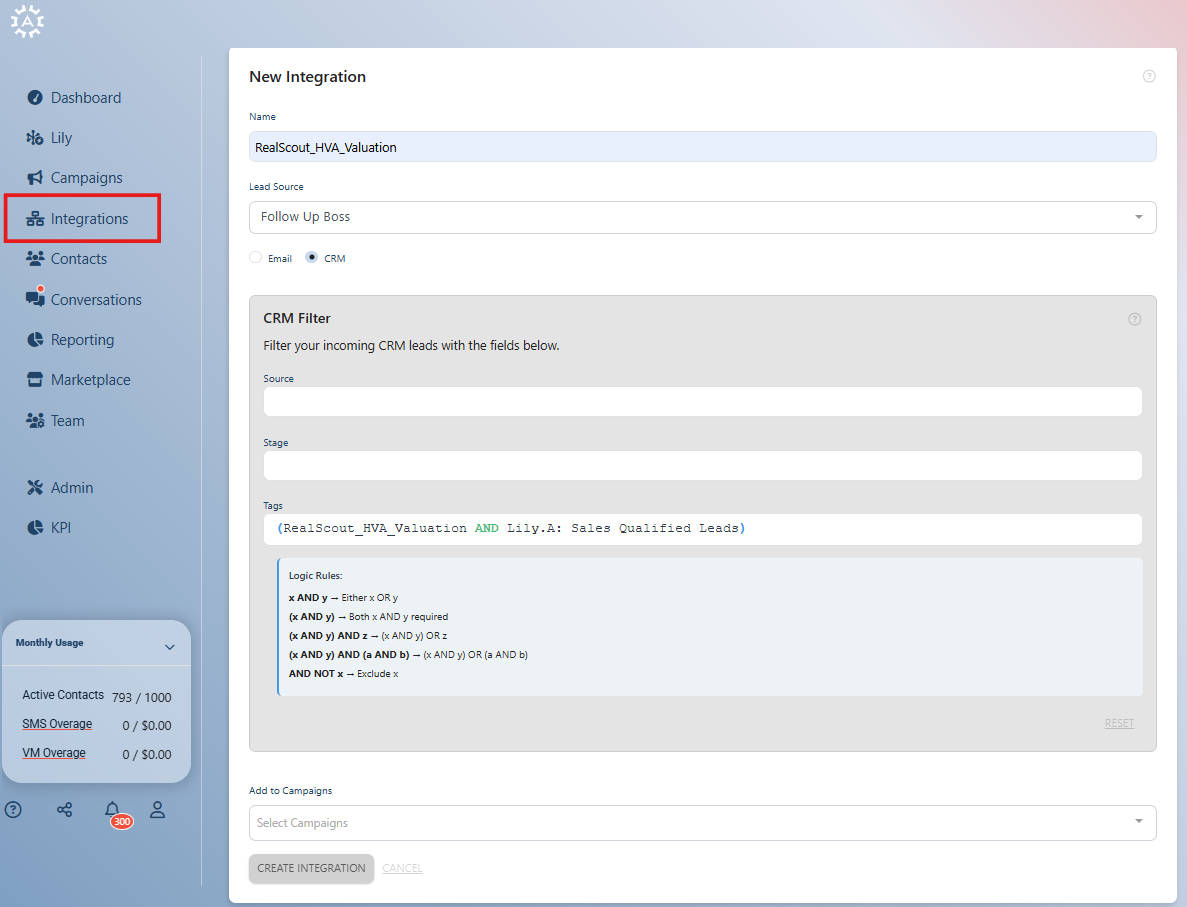
- Give the integration a name — for example, "RealScout — HVA Viewed."
- Select Follow Up Boss as the lead source.
- Under the tag filter, enter the RealScout tag for this campaign. For example:
RealScout HVA Viewed - If you have Lily connected to your database and want to layer in a lead score filter, add the Lily tag as a second condition. For example:
Lily.A: Hot. This ensures the campaign only triggers for contacts that meet both criteria — the right RealScout activity and the right lead score.
> Note: Lily tags are optional but recommended. They help make sure the most assertive campaigns go to the highest-intent leads.
- Select the campaign you want to trigger for this tag combination.
- Click Save. The integration is now live — any contact who gets that RealScout tag in Follow Up Boss will automatically be added to the campaign.
Repeat this process for each of the RealScout campaigns you want to activate.
How do I know it's working?
Once your integrations are live, you can monitor your contacts tab. Any new contact that triggers a RealScout tag and gets added to a campaign will appear under Contacts.
Feeling stuck? We're here to help! Reach out to us via the Support chat or send an email to [email protected] and we'll be happy to help you through the process!