
How do I use Saved Views?
Save your favorite contact views and return to them with a single click.
Saved Views allow you to save any combination of filters you've applied to your Contacts page. Instead of rebuilding the same searches every time, simply save the view once and access it whenever you need it.
Whether you're reviewing new leads, monitoring campaign engagement, or organizing contacts into actionable lists, Saved Views help you get to the right contacts faster.
Creating a Saved View
- Navigate to the Contacts page.
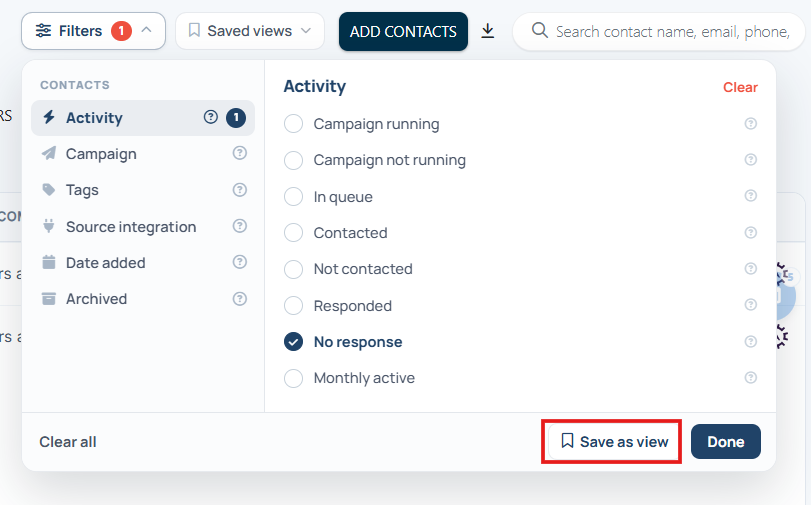
- Apply the filters you'd like to use.
- Click Save as View.
- Enter a name for your view.
- Click Save.
Your Saved View is now available from the Saved View dropdown.
Using Saved Views
To apply a Saved View:
- Navigate to the Contacts page.
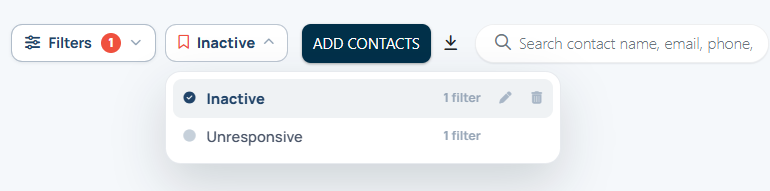
- Click the Saved View dropdown.
- Select the view you'd like to apply.
You can also use the Saved View dropdown to rename, edit, or delete your saved views.
Sticky Views
Your most recently selected view remains active until you choose another one.
This means when you return to the Contacts page, your contacts will automatically display using the last Saved View you were working in.
Even if you clear your filters, your saved views remain available in the Saved View dropdown and can be reapplied at any time.
Example: If you frequently review contacts in Campaign A who haven't responded, simply apply those filters once, save the view as Campaign A - No Response, and you'll be able to return to that list with a single click.
Example Saved Views
Here are a few examples that many customers find helpful:
| Saved View | Filters | Purpose |
|---|---|---|
| Unresponsive | Response Status: No Response | Contacts who haven't engaged with your outreach. |
| Inactive | No Campaign Running + No Response | Great candidates for a re-engagement campaign. |
| Active Conversations | Response Status: Responded | Contacts that may need personal follow-up. |
| Campaign Follow-up | Campaign: Select Campaign + No Response | Monitor contacts still working through a campaign. |
| New Leads | Date Added: This Month | Quickly review your newest contacts. |
Tip: Give your views names that match your workflow, such as Morning Calls, Weekly Review, Needs Attention, or Reactivation List.
Using Saved Views with Lily
If Lily is enabled on your account, Saved Views become even more powerful.
In addition to standard contact fields, you can build Saved Views using Lily Database Insights and Lead Intelligence data. Because Lily continuously enriches your database, these views automatically stay up to date as contact information and insights change.
Some examples include:
| Saved View | Filters | Purpose |
|---|---|---|
| High Priority Leads | Lead Intelligence Score: 80+ | Focus on your highest-priority opportunities. |
| Likely Sellers | Sales Qualified + No Campaign Running | Find likely sellers who aren't currently being nurtured. |
| Reactivation Opportunities | Recently Active + No Response + No Campaign Running | Re-engage contacts showing recent activity. |
| Investor Database | Buyer Type: Investor | Maintain a dedicated list of investor contacts. |
| Database Gold | Lead Intelligence Score: 80+ + Responded + No Campaign Running | Surface warm opportunities that aren't currently in follow-up. |
Tip: Saved Views are dynamic—not static lists. As Lily updates contact information and Lead Intelligence insights, your Saved Views automatically update as well.
That's It!
Saved Views help you organize your database into meaningful segments, reduce repetitive searching, and quickly access the contacts that matter most.
If you have any questions, our support team is always happy to help.