
How do I add a handwritten letter to a drip campaign?
You can include a handwritten letter as an automated step inside any Agent Legend drip campaign. When a contact reaches that step in the sequence, the letter is triggered and sent automatically — no manual action needed.
> Before you start: Make sure you have letter credits in your account. You'll need at least one credit available to add a letter step. How do I purchase letter credits?
How do I add a letter step to my campaign?
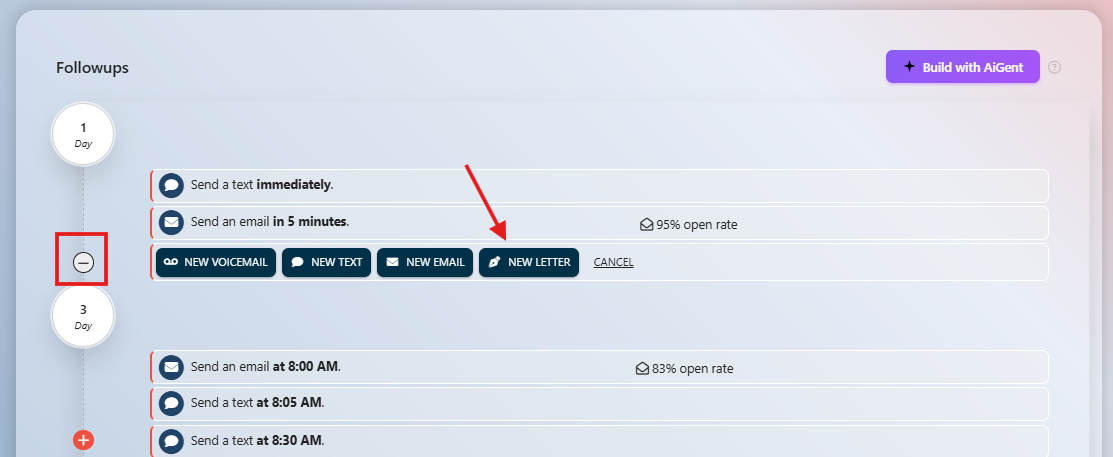
- Navigate to Campaigns in the left-hand sidebar and open the campaign you'd like to edit (or create a new one).
-
Click to add a new step in your sequence and select Letter as the step type.
- Select your card design template. You can upload a custom design, create one in Canva, or choose from the Agent Legend template library.
-
Write your letter content. You can use merge fields like
[[FirstName]]or[[My Name]]to personalize each letter automatically for the recipient.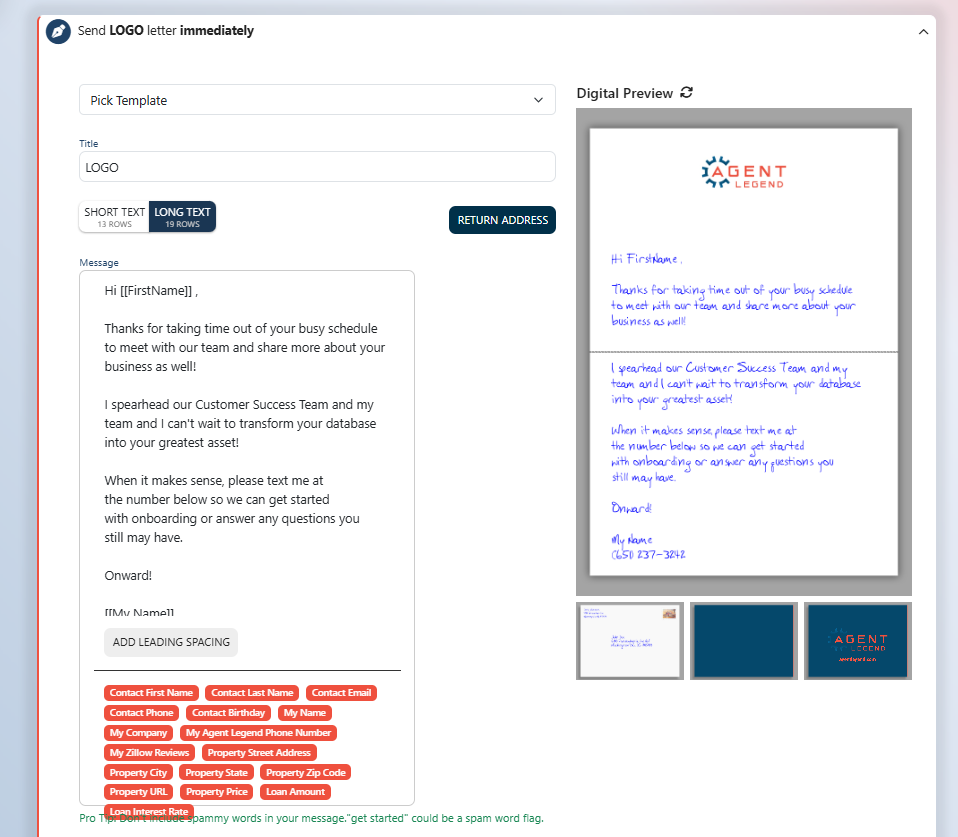
- Review the preview of your letter and confirm.
- Click Save. The letter step is now active in your campaign sequence.
A note on letter proofs and merge fields
When you preview your letter, merge field placeholders will display as field names (like {FirstName} ) rather than actual contact values. This is expected behavior — the real values populate automatically when the letter goes to production.
What address is used for delivery?
Letters are sent to the mailing address on file for each contact. If a contact doesn't have a valid mailing address, the letter will not send for that contact.
Feeling stuck? We're here to help! Reach out to us via the Support chat or send an email to [email protected] and we'll be happy to help you through the process!